Access Remote Machines with rstream WebTTY
Use rstream WebTTY and optional QUIC tunnel transport to reach remote machines from the rstream Dashboard, browser-based clients, or the rstream CLI without exposing a conventional remote shell service publicly.
This guide shows how to publish, connect to, and automate an rstream WebTTY server when a remote machine is not publicly reachable, or when exposing a conventional remote shell service would create unnecessary exposure. The same pattern works for administrative hosts, personal workstations, homelabs, embedded devices, and machines behind NAT, private addressing, or restrictive firewalls.
The model is straightforward. The remote machine runs a WebTTY server process and establishes the outbound connection to the rstream edge network. From there, you can connect through the native rstrm:// dialer from the CLI, through the Dashboard, or through a published wss:// URL from another browser-based client. That combination of web-native transports, outbound-only connectivity, and direct integration with rstream tunnels makes WebTTY a practical way to reach machines that are otherwise not addressable from the public Internet.
WebTTY has two operating shapes. This guide starts with the lightweight WebTTY tunnel path because it is the fastest way to validate access to one machine. Registered WebTTY servers add persistent inventory, managed recordings, live collaboration APIs, and workspace-managed encryption; those production features are documented in the WebTTY reference section.
| Need | Recommended WebTTY shape |
|---|---|
| Quick browser or CLI terminal while the process is online | Lightweight WebTTY tunnel |
| Temporary agent access to a labeled machine | Lightweight WebTTY tunnel |
| Server remains visible while offline | Registered WebTTY server |
| Managed session logs and replay/export | Registered WebTTY server |
| Live spectator attach and control request | Registered WebTTY server |
| Workspace-managed E2E with trusted browsers/devices | Registered WebTTY server in an Enterprise workspace |
The published lightweight workflow below works on hosted plans and self-hosted deployments where the underlying tunnel capabilities are available. Private CLI-only access follows the private tunnel capability of the selected plan or deployment.
WebTTY vs SSH
rstream WebTTY is built on web protocols and on the tunnel model itself. The same terminal can therefore be reached from the rstream Dashboard, from browser-based clients, and from the rstream CLI while the remote machine only maintains an outbound connection to the edge. That fits naturally on machines that do not have a public IP address, that sit behind NAT or private addressing, or that are not meant to expose inbound services.
SSH remains the better fit when the workflow depends on the SSH ecosystem itself, such as ssh_config, agent forwarding, scp, sftp, or existing SSH host-key and bastion patterns. When that is the requirement, use the SSH workflow covered in Access Remote Machines over SSH with rstream.
Prepare access to the project
The machine that runs the WebTTY server needs an rstream CLI configuration that resolves to the target project. If the native CLI client flow is also used, the client machine needs the same project selection.
For a quick hosted validation, the simplest preparation on each CLI machine is:
rstream login
rstream project use <project-endpoint>
That setup is convenient for operator workstations. For long-lived servers and devices, a dedicated project-scoped context is usually the better choice so the machine only holds the access it actually needs. Background on installation, authentication, and context management is covered in Installation, CLI Login, and CLI Workflow.
Publish a WebTTY server
rstream webtty server -v --rstream --name homelab-serverThis starts a published WebTTY server with the tunnel name homelab-server. The name is only an example, but in practice it identifies the machine itself so that several servers remain distinguishable in inventory, automation, and browser sessions. The published form is the one used by the rstream Dashboard and by browser-based clients because it provisions the wss:// entrypoint those sessions require.
The server process itself is the long-running workload. Unlike the SSH pattern, there is no separate sshd process to pair with a tunnel. rstream webtty server provides the terminal server and the tunnel-facing endpoint in the same binary, so the remote access path does not require an inbound listener or a local port binding.
Access control and execution model
Published and private WebTTY servers follow the same access policy. The rstream edge network verifies the caller before the session reaches the remote machine. Native CLI sessions rely on the authenticated local rstream context. Browser sessions rely on a short-lived token issued for that session. Publishing a WebTTY server therefore adds a browser-capable wss:// entrypoint, but it does not turn the remote terminal into an anonymously reachable service.
The execution mode decides which local operating-system identity owns the command. Lightweight servers default to spawn: commands are child processes of rstream webtty server and therefore use the service process account. login is different: the server resolves a local account before accepting sessions, builds that account's login environment, and on Unix applies its uid, gid, supplementary groups, home, and shell.
A persistent service should make that contract explicit. Use --execution-mode login --login-user <local-username> when every session must use one operating-system account. Replace <local-username> with an account that already exists on the remote machine. Run id -un there on Linux or macOS, or $env:USERNAME in Windows PowerShell, to print the current local username. This value is not your rstream account and it is not supplied by the connecting operator. rstream does not create the account; an unknown or unusable fixed account makes the server fail at startup. Registered servers already default to login, but they still need this target user unless the more permissive --allow-client-user policy is explicitly enabled.
Connect from the CLI
Once the server is online, the native CLI workflow is direct:
rstream webtty exec --url rstrm://homelab-server -- printf 'hello world\n'For an interactive session:
rstream webtty client --url rstrm://homelab-serverFor the native CLI path, the client dials rstrm://homelab-server directly through the local rstream configuration. In day-to-day operator workflows, that keeps the command stable even when the same server also has a published browser address.
For automation and agents, prefer the non-interactive alias:
rstream webtty exec --url rstrm://homelab-server -- uname -awebtty exec disables TTY allocation and returns a JSON result containing stdout, stderr, exit code, and duration. That shape is easier for systems such as Codex to evaluate safely than a long-lived interactive session.
Enable filesystem access for agents
WebTTY can expose an optional WebDAV filesystem sidecar next to the terminal endpoint. In addition to command execution, it lets clients list directories, read files, upload files, download files, or write files under the configured root. It is disabled by default. Enable it only for the directory tree the remote workflow needs:
rstream webtty server -v --rstream --name homelab-server --fs-root "$HOME"The sidecar is read-write by default. That matches the execution model because shell commands can already write to the same machine. For inspection-only workflows, add --fs-read-only:
rstream webtty server -v --rstream --name homelab-server --fs-root "$HOME" --fs-read-onlyThe filesystem sidecar is advertised in inventory through rstream.webtty.capabilities=exec,fs, rstream.webtty.fs.path=/fs, and rstream.webtty.fs.mode. Check those fields before attempting file operations:
rstream webtty list -o json
rstream webtty fs ls --url rstrm://homelab-server /
rstream webtty fs read --url rstrm://homelab-server /README.md
This gives an agent two separate paths: webtty exec for command execution and webtty fs for file reads or writes. Use the filesystem path for file transfer instead of encoding large payloads into shell commands.
The sidecar rejects paths whose symlinks resolve outside --fs-root, but it is not a sandbox. Run WebTTY as a dedicated user and expose the narrowest useful root when the machine is shared or long-lived.
Use QUIC tunnel transport on moving networks
The WebTTY server and the native WebTTY client each maintain their own client-to-edge tunnel transport. On machines that move between networks, or on operator laptops switching between office Wi-Fi, tethering, and mobile networks, either side can opt into QUIC.
On the remote machine, enable QUIC for the server-to-rstream leg:
RSTREAM_TUNNEL_TRANSPORT=quic rstream webtty server -v --rstream --name homelab-serverFor native rstrm:// clients, enable QUIC for the client-to-rstream leg:
RSTREAM_TUNNEL_TRANSPORT=quic rstream webtty client --url rstrm://homelab-serverThis is especially useful for private WebTTY access because both ends are rstream clients and both ends can benefit from QUIC resilience. Published browser sessions still use the browser's own connection to the wss:// endpoint returned by the Dashboard or by an application backend; setting RSTREAM_TUNNEL_TRANSPORT on a local CLI process does not force a browser transport.
Connect from the Dashboard
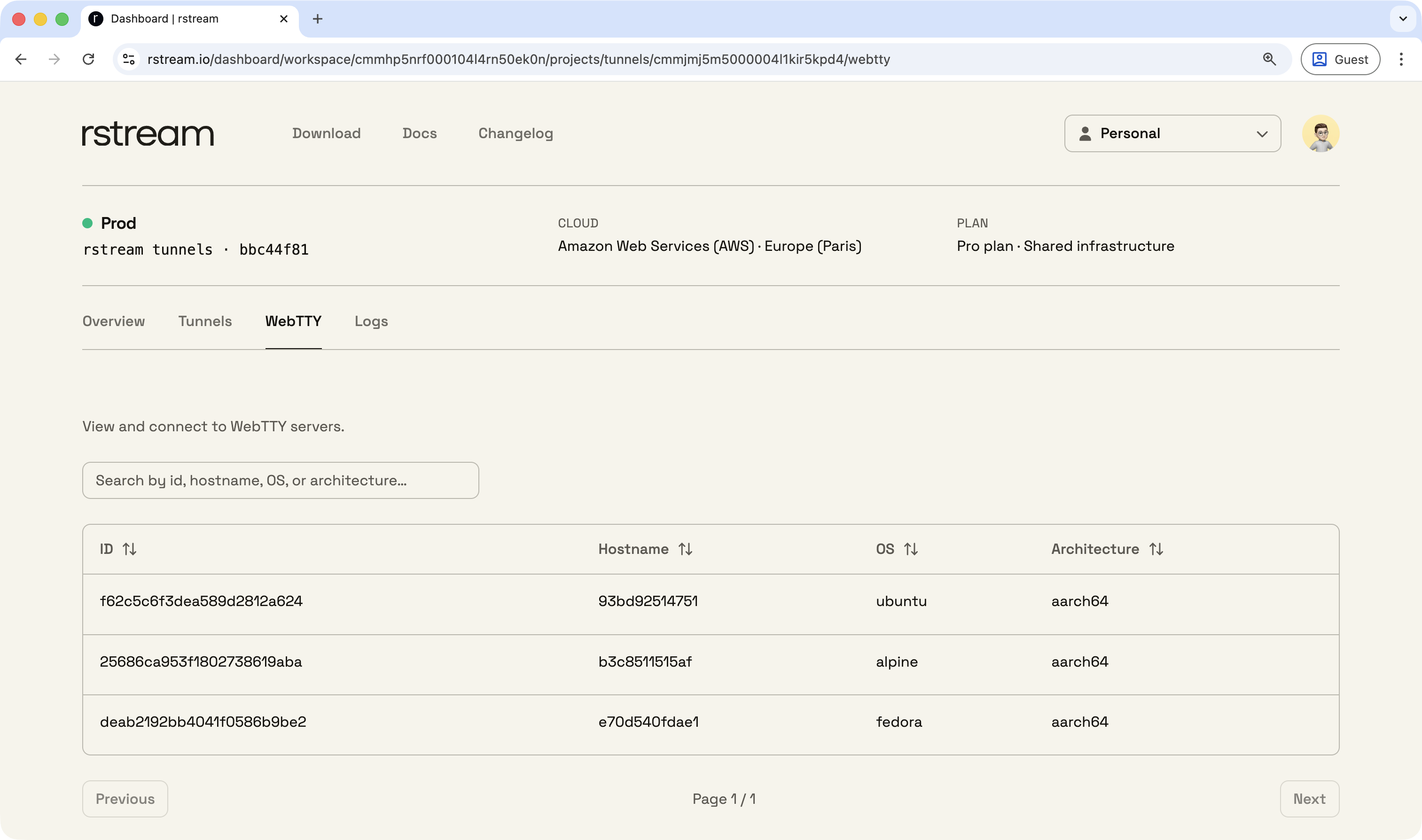
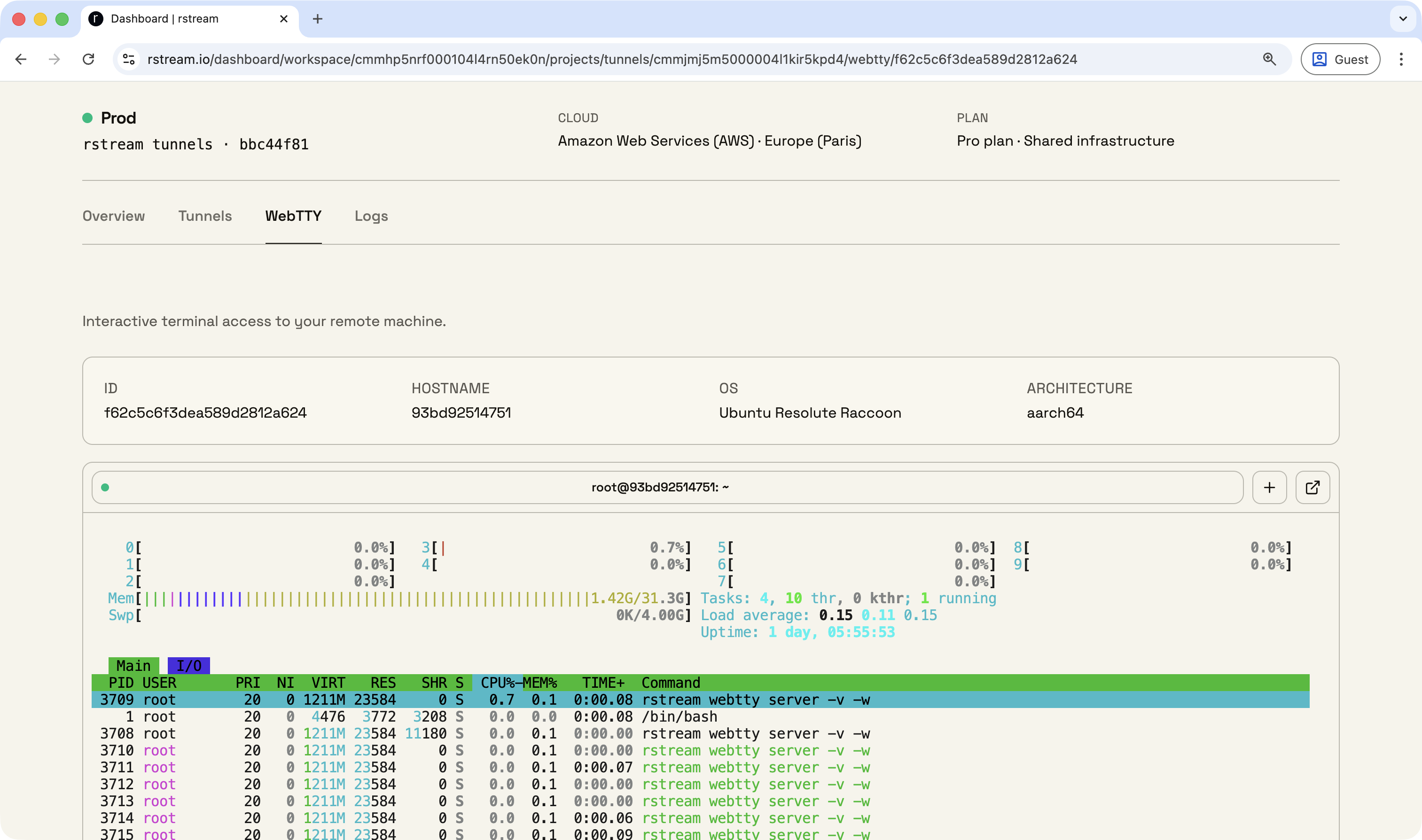
The same published server can also be opened from the Dashboard. Open the target project, navigate to the WebTTY page, select the server, and start the browser session from there. The Dashboard resolves the published wss:// address, requests a short-lived token through the Control plane API, and opens the remote terminal in the browser.
This browser workflow depends on the server being published. A private --no-publish server remains available to native CLI clients, but it does not expose the published entrypoint that the browser requires.
Inspect available WebTTY servers from the CLI
If more than one WebTTY server is online, the dedicated inventory command is:
rstream webtty list
rstream webtty list --filter 'labels.rstream.webtty.label.role=codex'
This inventory only includes online WebTTY servers. It shows the native rstrm:// target used by the CLI, the host metadata generated by the server, and the published host when browser access is enabled.
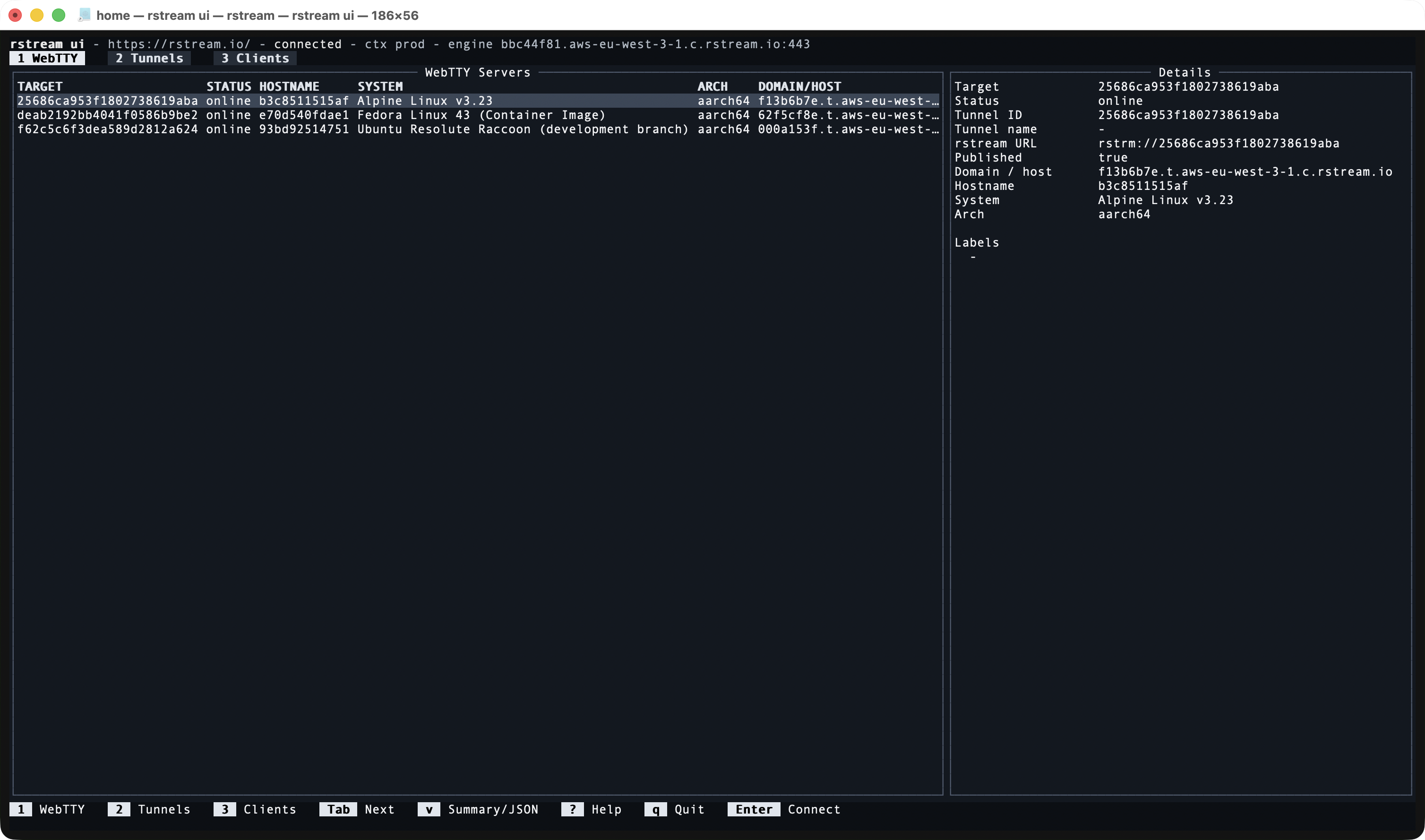
For live operator workflows across WebTTY servers, tunnels, and clients, use the terminal UI:
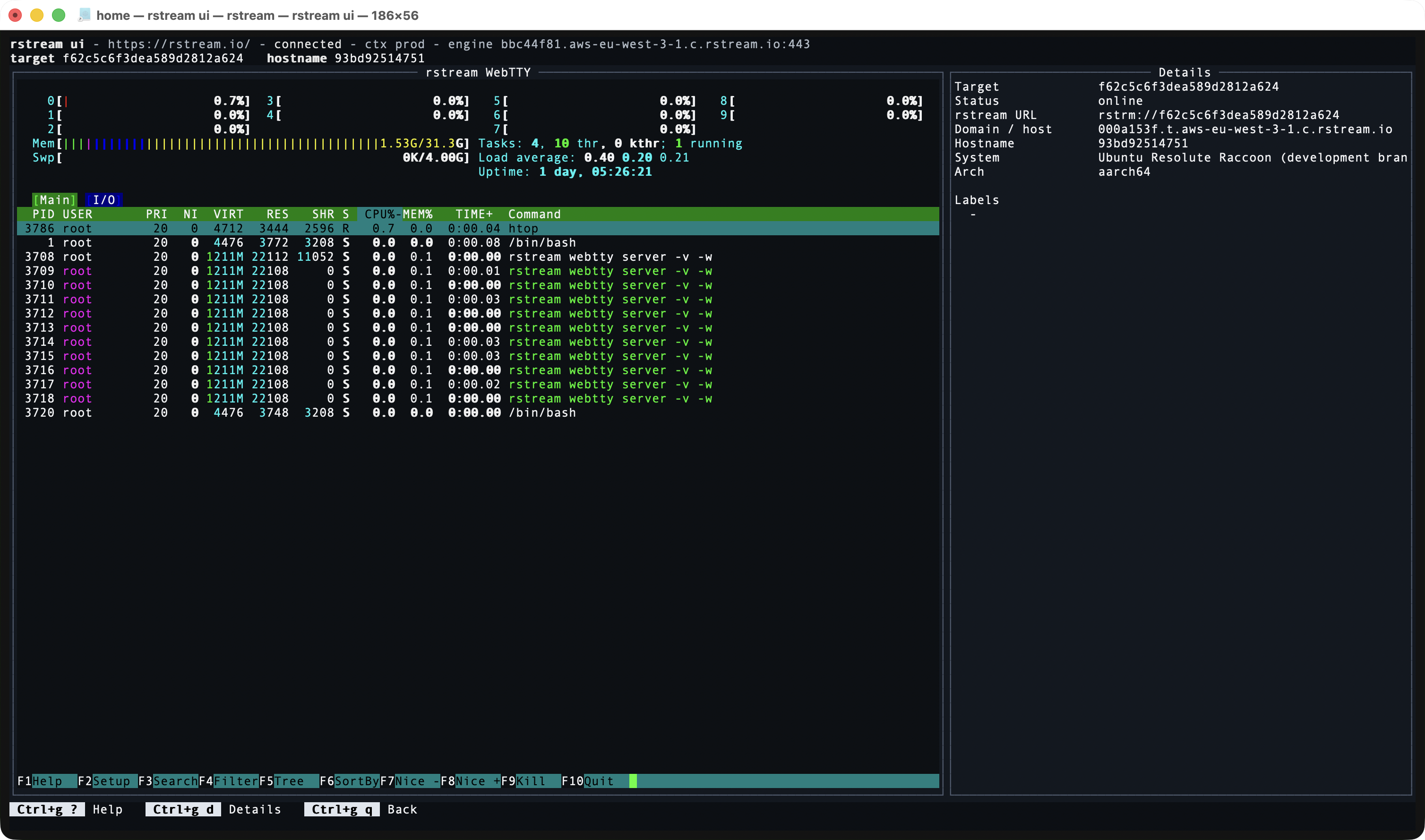
rstream uirstream ui keeps the inventory up to date from the live signaling API. From the WebTTY view, pressing Enter opens the selected server directly inside the UI. This is the better CLI console when discovery and connection happen in the same operator session.
The same operator workflow can start from the CLI inventory or from an embedded WebTTY session inside rstream ui.
When raw tunnel properties or label-level filtering are needed, the lower-level inventory view remains available:
rstream tunnel list --filter 'labels.application-protocol=rstream.webtty'Private CLI access
If browser access is not part of the requirement, the same WebTTY server can be kept private:
rstream webtty server -v --rstream --name homelab-server --no-publishPrivate tunnel dialing requires Pro, Enterprise, or self-hosted deployments. This private WebTTY form is therefore not available on the Basic plan.
The corresponding CLI workflow keeps the same target and uses no browser path:
rstream webtty client --url rstrm://homelab-serverThis mode removes the browser-facing entrypoint entirely. It is the tighter option when native rstream clients are the only intended consumers. Authorized rstream clients can still dial the server natively through rstrm://homelab-server, but the Dashboard and other browser-based clients no longer have a published wss:// address to use.
Published WSS access
The native rstrm:// form is usually the better CLI workflow, but it is not the only option. A published WebTTY server also exposes a wss:// URL, and the CLI can connect to it directly when a URL-based flow is required.
rstream tunnel list --filter 'name=homelab-server,labels.application-protocol=rstream.webtty' -o json | jq -r '.[0].hostname // .[0].host'Then:
rstream webtty client --url 'wss://<published-host>?rstream.token=<token>'The Dashboard uses this same published transport. The difference is token handling. In the Dashboard, the browser session obtains a short-lived token through the Control plane API and injects it automatically. For direct CLI use, the token has to be supplied explicitly in the URL.
This path is useful when URL-based access is needed, but it is not the primary CLI recommendation. When the CLI already has project access, rstrm://homelab-server is simpler and avoids a separate published address lookup.
Adjust the remote session
The WebTTY client can also set the working directory, environment variables, or the target user of the remote process:
rstream webtty client \
  --url rstrm://homelab-server \
  -e FOO=bar \
  -w /tmp \
  -u admin \
  -- sh -lc 'printf "%s|%s|%s\n" "$PWD" "$FOO" "$(id -un)"'
These options are useful when the remote machine needs a specific runtime context, but they are part of the operational contract of the server. The complete client flag reference is covered in CLI Reference.
Start the WebTTY server automatically
Unlike the SSH workflow, there is no separate resident system service such as sshd to pair with rstream run. Here the WebTTY server itself is the long-running process, so automation is handled directly by the operating system service manager.
The examples below use an operating-system-specific tunnel name, production as the rstream context, and the current operating-system account as the login user. RSTREAM_LOGIN_USER="$(id -un)" captures that local username on Linux and macOS and passes it to --login-user; this is the account that will own each remote session. Change the name and context before installation. Add --no-publish to the service command when only native rstrm:// clients should be able to connect.
For production fleets, prefer registered servers over a hand-maintained lightweight service definition. Create the registered server from the Dashboard, CLI, or API, enroll the remote host once, and then run:
rstream webtty server -v --server-id <server-id> --login-user <local-username>That path keeps server inventory and policy in the product while the host service manager only owns process supervision.
Linux
Resolve the installed binary and write a user service whose execution policy is explicit:
RSTREAM_BIN="$(command -v rstream)"
RSTREAM_LOGIN_USER="$(id -un)"
RSTREAM_CONTEXT=production
RSTREAM_WEBTTY_NAME=homelab-linux
mkdir -p ~/.config/systemd/user
cat > ~/.config/systemd/user/rstream-webtty.service <<EOF
[Unit]
Description=rstream WebTTY server
After=network-online.target
Wants=network-online.target

[Service]
Type=simple
ExecStart=${RSTREAM_BIN} webtty server -v --rstream --name ${RSTREAM_WEBTTY_NAME} --context ${RSTREAM_CONTEXT} --execution-mode login --login-user ${RSTREAM_LOGIN_USER} --retry
Restart=on-failure
RestartSec=10

[Install]
WantedBy=default.target
EOF
systemd-analyze --user verify ~/.config/systemd/user/rstream-webtty.service
Enable it with:
systemctl --user daemon-reload
systemctl --user enable --now rstream-webtty.service
loginctl enable-linger "$(id -un)"
loginctl enable-linger allows the user service to stay active after logout and across reboots.
This is the usual remote-administration profile. The unit logs in as the same account that owns the user service and preserves that account's normal host permissions, including its existing sudo policy. WebTTY does not grant sudo: the selected account must already be authorized by the host, and WebTTY access policy should be treated as access to that account.
For a deliberately non-administrative terminal, add an optional hardening drop-in:
mkdir -p ~/.config/systemd/user/rstream-webtty.service.d
cat > ~/.config/systemd/user/rstream-webtty.service.d/20-non-administrative.conf <<'EOF'
[Service]
NoNewPrivileges=true
PrivateTmp=true
EOF
systemd-analyze --user verify ~/.config/systemd/user/rstream-webtty.service
systemctl --user daemon-reload
systemctl --user restart rstream-webtty.service
NoNewPrivileges=true prevents the service and every WebTTY session it creates from gaining privileges through sudo, setuid, or setgid programs. In a user service, PrivateTmp=true can also introduce a user and mount namespace whose ownership mapping causes privilege-changing tools to reject root-owned files. This profile is therefore intentionally incompatible with using WebTTY for host administration. Prefer a dedicated account without sudo for this profile, and omit the drop-in when WebTTY is the machine's administrative access path.
If the server must select other operating-system users, use a deliberately privileged machine-level service and review the host authentication policy instead of copying either user-service profile unchanged.
macOS
Use a LaunchAgent for a WebTTY server that belongs to the signed-in user's session. The plist below launches the signed rstream binary directly, sets a stable executable PATH for remote commands, selects login mode, and records process logs without wrapping the daemon in additional shells:
RSTREAM_BIN="$(command -v rstream)"
RSTREAM_LOGIN_USER="$(id -un)"
RSTREAM_CONTEXT=production
RSTREAM_WEBTTY_NAME=homelab-mac
mkdir -p ~/Library/LaunchAgents ~/Library/Logs/rstream
cat > ~/Library/LaunchAgents/io.rstream.webtty.plist <<EOF
<?xml version="1.0" encoding="UTF-8"?>
<!DOCTYPE plist PUBLIC "-//Apple//DTD PLIST 1.0//EN" "http://www.apple.com/DTDs/PropertyList-1.0.dtd">
<plist version="1.0">
  <dict>
    <key>Label</key>
    <string>io.rstream.webtty</string>
    <key>ProgramArguments</key>
    <array>
      <string>${RSTREAM_BIN}</string>
      <string>webtty</string>
      <string>server</string>
      <string>-v</string>
      <string>--rstream</string>
      <string>--name</string>
      <string>${RSTREAM_WEBTTY_NAME}</string>
      <string>--context</string>
      <string>${RSTREAM_CONTEXT}</string>
      <string>--execution-mode</string>
      <string>login</string>
      <string>--login-user</string>
      <string>${RSTREAM_LOGIN_USER}</string>
      <string>--retry</string>
    </array>
    <key>RunAtLoad</key>
    <true/>
    <key>KeepAlive</key>
    <true/>
    <key>ThrottleInterval</key>
    <integer>10</integer>
    <key>EnvironmentVariables</key>
    <dict>
      <key>PATH</key>
      <string>/opt/homebrew/bin:/usr/local/bin:/usr/bin:/bin:/usr/sbin:/sbin</string>
    </dict>
    <key>StandardOutPath</key>
    <string>${HOME}/Library/Logs/rstream/webtty.log</string>
    <key>StandardErrorPath</key>
    <string>${HOME}/Library/Logs/rstream/webtty.log</string>
  </dict>
</plist>
EOF
plutil -lint ~/Library/LaunchAgents/io.rstream.webtty.plist
launchctl bootout "gui/$(id -u)" ~/Library/LaunchAgents/io.rstream.webtty.plist 2>/dev/null || true
if ! launchctl bootstrap "gui/$(id -u)" ~/Library/LaunchAgents/io.rstream.webtty.plist; then
  sleep 1
  launchctl bootstrap "gui/$(id -u)" ~/Library/LaunchAgents/io.rstream.webtty.plist
fi
launchctl kickstart -k "gui/$(id -u)/io.rstream.webtty"
The direct ProgramArguments form keeps process ownership and logs visible to launchd. The explicit PATH also avoids a common difference between an interactive Terminal session and a LaunchAgent, whose default path does not include Homebrew.
Prepare macOS privacy permissions
macOS can require a local approval before WebTTY accesses protected folders such as Desktop, Documents, or Downloads; a remote terminal cannot accept that prompt. Before relying on unattended access, grant only the required Files & Folders permissions, or Full Disk Access when broad administration is intentional, then restart the LaunchAgent.
See WebTTY operations: macOS privacy permissions for the approval command, Homebrew upgrade considerations, managed fleet options, and validation steps.
Windows
Create a small settings file and a generic launcher script:
$settings = "$env:USERPROFILE\.rstream\webtty-settings.ps1"
$launcher = "$env:USERPROFILE\.rstream\webtty-launch.ps1"
New-Item -ItemType Directory -Force "$env:USERPROFILE\.rstream" | Out-Null
@'
$RstreamBin = (Get-Command rstream).Source
$WebTTYName = "homelab-windows"
$WebTTYFlags = @(
  "--context", "prod",
  "--execution-mode", "login",
  "--login-user", $env:USERNAME,
  "--retry"
)
'@ | Set-Content $settings
@"
. `"$settings`"
& `$RstreamBin webtty server -v --rstream --name `$WebTTYName @WebTTYFlags
"@ | Set-Content $launcher
$action = New-ScheduledTaskAction -Execute "pwsh" -Argument "-NoProfile -File `"$launcher`""
$trigger = New-ScheduledTaskTrigger -AtLogOn
Register-ScheduledTask `
  -TaskName "rstream WebTTY Server" `
  -Action $action `
  -Trigger $trigger `
  -User $env:USERNAME `
  -Force
Start-ScheduledTask -TaskName "rstream WebTTY Server"
For a private CLI-only server, add "--no-publish" to $WebTTYFlags.
Operational notes
The published workflow above is the broadest deployment shape. It supports browser sessions from the Dashboard, native rstrm:// sessions from the CLI, and direct wss:// connections when URL-based access is required.
The private --no-publish form narrows that surface for CLI-only environments. The browser path disappears, while the operational model stays simple with one long-running server process on the remote machine and native WebTTY clients on the operator side.
Registered WebTTY servers are the next step when the machine is part of a managed fleet. They add durable inventory, recording policy, live session APIs, and workspace-managed E2E. Use WebTTY, Registered Servers, and End-to-End Encryption when moving from this quick access pattern to a production remote-shell surface.